How to Import Your Collection From Other Apps (CSV) — The Fast, Safe Way
If you have ever tried switching collection apps, you have felt the pain: re-entering hundreds (or thousands) of items is a non-starter. The good news is that most platforms can export your collection, and ToyHuntr is designed to help you import fast—while keeping your data clean and your inventory accurate.
What You Need to Import a Collection
- A CSV export from your current app (or a spreadsheet file).
- Basic item identifiers like brand/line, name/title, and any notes/variants you track.
- Optional fields like condition, purchase price, location, and photos.
Step-by-Step: Import From Another App (CSV)
1) Export your collection to CSV
Look for an export option like Export, Download CSV, or Export Spreadsheet. If your current app does not support CSV export, you can often copy/paste into Google Sheets or Excel and save as CSV.
2) Clean your CSV (the difference between a great import and a messy one)
A clean CSV imports faster and prevents duplicates. Before importing, spend 5–10 minutes doing the basics:
- Remove empty rows and duplicate header rows.
- Standardize names (example: "TMNT" vs "Teenage Mutant Ninja Turtles").
- Split combined fields if needed (brand/line vs item title).
- Keep IDs if you have them (SKU, UPC, barcode, your old app's internal ID).
3) Import into ToyHuntr
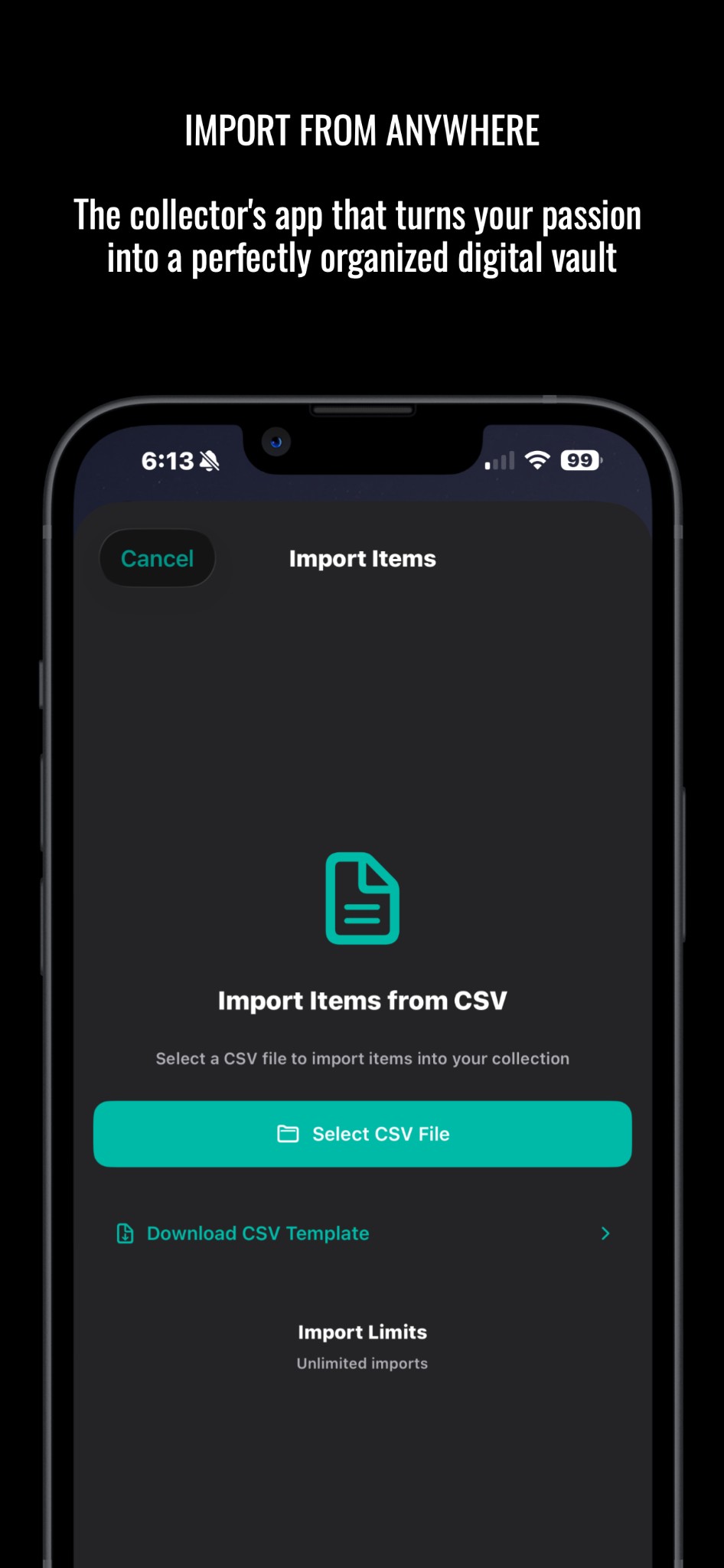
In ToyHuntr, choose Import Items, select your CSV file, then follow the import prompts. The goal is to map your columns to the fields that matter most for collectors—so your collection stays searchable, sortable, and useful.
4) Verify a small sample before you import everything
Pro move: verify 10–20 items first. Confirm titles, notes, variants, and quantities look correct. This catches column mapping issues early—before you import a thousand records.
5) Finish strong: organize for real collector workflows
Once imported, you can refine details item-by-item (condition, location, photos) and start using ToyHuntr like a real collection tool: quick search, clean organization, and a vault you can trust—at home or on the show floor.
Common Import Problems (And How to Avoid Them)
- Duplicates: normalize item names and use a unique column (UPC/SKU/ID) when possible.
- Weird characters: re-save your CSV as UTF-8 from Sheets/Excel.
- Missing values: keep "notes" — they're often the most valuable field collectors have.
- Wrong columns: always test a small sample first.
Quick Answers
- Can I import a collection from another app? Yes—export a CSV (or build one in Sheets/Excel) and import into ToyHuntr.
- What's the easiest way to import a collection? Export a CSV, clean the column names, and test-import 10–20 items first.
- Can I import toys, comics, and trading cards? Yes—ToyHuntr is built for toy collectors first, but works across collectible categories.
Keep Your Collection Portable
Your collection is yours. Importing from other apps means you are not locked in—and you can keep your vault organized across devices, including offline scenarios like conventions and expos.
Get early access to ToyHuntr and start importing in minutes.